Sales Orders
Sales → Sales Orders lists every order and its status. This is where a deal becomes a commitment: you build the order, confirm it to allocate stock, follow it through picking and dispatch, and hand it to Finance to invoice and collect. This page builds one order — SO-1043 for Sunrise Polymers — field by field, from a blank header to a paid, partially-returned order.
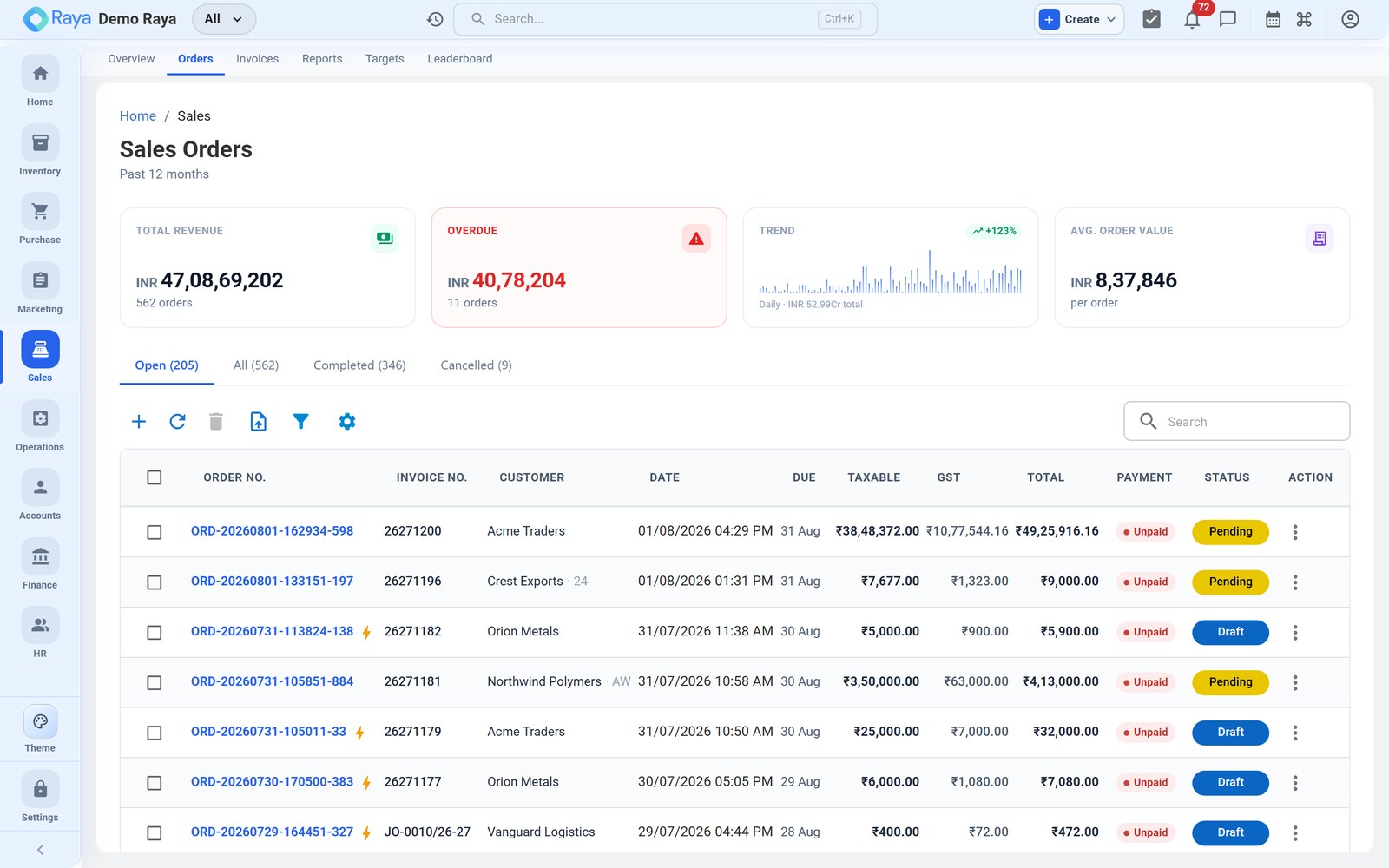
Our worked order
We will raise SO-1043, an inter-state supply (our Gujarat warehouse → the customer in Maharashtra, so IGST applies):
| # | Product | HSN | Qty | Unit | Rate (₹) | Taxable (₹) |
|---|---|---|---|---|---|---|
| 1 | HDPE Granules | 3901 | 12 | MT | 27,000 | 3,24,000 |
| 2 | LDPE Film | 3920 | 4 | MT | 39,500 | 1,58,000 |
Sub-total ₹4,82,000, IGST @18% ₹86,760, order total ₹5,68,760.
Create an order — the header
- Click + New Order (or press Alt + N).
- Fill the header. Every field below has a job downstream, so it pays to get them right the first time:
| # | Field | How to fill it (SO-1043) |
|---|---|---|
| 1 | Customer | Type Sunrise and pick the account, or + Add new. Raya pulls the billing and shipping address and the GSTIN — the GSTIN is what decides IGST vs CGST/SGST later. |
| 2 | Order Date | Defaults to today; leave it. |
| 3 | Expected Delivery Date | Set the promised date — it feeds the "due this week" dashboard widgets and the delivery schedule. |
| 4 | Sales Person | The user who owns the order — this is who the target & leaderboard credits. |
| 5 | PO Reference | The customer's own purchase-order number (e.g. SP/PO/6642), printed on the invoice for their matching. |
| 6 | Location | The warehouse this ships from — pick the Gujarat plant. Stock is allocated from this location. |
| 7 | Currency | Inherited from your organisation (₹). A foreign customer instead triggers Export Sales. |
:::note The GSTIN drives the tax split Because the customer's GSTIN state code differs from your warehouse's, Raya reads inter-state and applies IGST 18%. Had Sunrise been in your own state, the same 18% would post as CGST 9% + SGST 9% with no change to the total. You never pick CGST/SGST/IGST by hand — the two GSTINs decide it. :::
Add line items from inventory
Each row is one product pulled from the item master, which carries its description, default rate, HSN and GST rate:
- In the Line Items grid, click + Add line and fill each column:
| Column | How to fill it | Line 1 | Line 2 |
|---|---|---|---|
| Product | Type-ahead the item master. Pulls description, rate, HSN, tax. | HDPE Granules | LDPE Film |
| Quantity / Unit | Qty in the item's UoM. | 12 MT | 4 MT |
| Rate | Auto-filled from the item; editable per order (negotiated price). | 27,000 | 39,500 |
| Discount | Per-line, as % or amount. Leave 0 here. | — | — |
| Tax Rate | Auto-filled GST rate (item-level mode). | 18% | 18% |
| Taxable | Qty × Rate − discount. | 3,24,000 | 1,58,000 |
- Watch the availability chip on each line. If the Gujarat location holds ≥ 12 MT HDPE and ≥ 4 MT LDPE, both lines show In stock; a short line is flagged so you know a work order or PO will be needed to fulfil it.
:::tip Free-text products Selling something not (yet) in the catalogue? Type a free-text product name in the Product cell and enter the rate manually. The line still bills and taxes correctly — it just won't draw down catalogued stock. :::
Discounts, shipping and the totals
- Review the totals card on the right. Order-level adjustments stack on top of the line sub-total:
| Total line | Meaning | SO-1043 |
|---|---|---|
| Sub-total | Sum of line taxable values, before order discount & tax. | 4,82,000 |
| Order discount | A whole-order %, or flat amount, applied before tax. | 0 |
| Tax (IGST 18%) | Item- or invoice-level GST on the discounted base. | 86,760 |
| Shipping charges | Freight you bill the customer, if any. | 0 |
| Round off | Nudges the grand total to the nearest rupee. | 0 |
| Total Amount | (Sub-total − discount) + tax + shipping, rounded. | 5,68,760 |
:::note How discount and shipping change the math An order discount is applied to the taxable base before GST, so a 2% discount here would cut the base to ₹4,72,360 and the IGST to ₹85,024. Shipping you bill is added after tax (unless you make it a taxable line). We keep both at zero so the worked total stays a clean ₹5,68,760 across every page. :::
- Add payment terms & remarks at the foot — e.g. "Net 30 days; 50% advance on confirmation" — free text that prints on the order and invoice.
Save: draft or confirm
- Save the order one of two ways:
- Save as Draft — keeps it in Draft, editable, with no stock impact.
- Confirm Order — moves it to Pending and allocates stock.
Confirm → downstream allocation
Confirming SO-1043 is the hand-off to Operations. In one step Raya:
- Moves the order to Pending and stamps the order number (SO-1043).
- Allocates 12 MT HDPE and 4 MT LDPE at the Gujarat location — the quantity is now committed, subtracted from available but not yet from on-hand.
- For any short line, offers to raise a work order (make it) or a purchase order (buy it) to cover the gap — the Lead-to-Cash chain.
- As Operations picks and dispatches, the status walks In Progress → Shipped; on Shipped the stock is deducted for real.
:::caution Allocation is not deduction Between Pending and Shipped the stock is held, not gone. Only shipping deducts it and only completion posts the COGS voucher (Dr Cost of Goods Sold ₹4,28,000 → Cr Inventory). Until then you can still recall or cancel and the goods return to available. :::
Quick Sale
For a fast, over-the-counter deal, use Quick Sale — a single screen to pick the customer, add items and take payment in one pass. It creates the same sales order behind the scenes (same number series, same stock allocation, same vouchers), so a cash-counter sale and a full B2B order like SO-1043 stay perfectly consistent in the ledger. Use it when there's no separate picking/dispatch step to track.
Edit, recall and cancel
Open any order to a tabbed detail view:
| Tab | Content |
|---|---|
| Line Items | Add, remove or edit lines — only while the status allows it. |
| Shipment | Carrier, tracking number, dispatch date and e-Way Bill. |
| Invoice | Generate or download the tax invoice, IRN/QR and e-Way Bill. |
| Payments | Record receipts against the order. |
| Documents | Attached files — customer PO copy, signed delivery note. |
| History | Who changed what, and when (full audit trail). |
- Recall a submitted order to pull it back to Draft for editing — its allocations are released back to available stock.
- Cancel an order any time before it completes to abandon it; held stock is freed and, if a voucher had posted, it is reversed.
:::tip Editing is status-gated You can freely edit a Draft. Once Pending, changing quantities re-runs the allocation. After Shipped, lines are locked — correct the value with a credit note instead of editing history. :::
Payment status
Each order carries a payment status that updates as you record receipts on the Payments tab:
| Status | Meaning | SO-1043 |
|---|---|---|
| Unpaid | Nothing received yet. | On invoicing |
| Partial | Some, not all, collected. | e.g. after a part-payment |
| Paid | Fully settled. | After the ₹5,68,760 NEFT |
Recording a payment (Cash / Cheque / Bank Transfer / UPI / Card) posts the
Receipt voucher to Finance automatically — Dr Bank / Cr Sunrise Polymers (AR).
See Invoices & e-Invoice for the
NEFT receipt on SO-1043.
Related
- Invoices & e-Invoice — bill SO-1043 with IRN, QR and e-Way Bill.
- Sales Returns & Credit Notes — the partial return on this order.
- Inventory — items and the stock orders allocate and draw down.
- Lead-to-Cash workflow — the full cycle SO-1043 rides.